Claude Code
Claude Code is an AI coding assistant that runs in your terminal. Once it is installed, point it at HiModels by setting the base URL, key and model. Replace <your API Key> in the examples with your own key; you can double-check the model IDs on the API Keys page under Model Management.
Install
In the terminal, run:
npm install -g @anthropic-ai/claude-code
claude --version
If you do not have Node.js yet, read the Node.js environment section first.
Recommended: connect with CC Switch
CC Switch keeps the provider configuration for several AI coding tools in one place. When you add a provider, pick the protocol that matches the target tool: Claude Code uses the Anthropic Messages address https://api.himodels.ai, while Codex uses the OpenAI Responses address https://api.himodels.ai/v1. Enter your HiModels API Key and a model ID supported by that protocol, save, switch to the HiModels entry, then verify inside the tool itself.
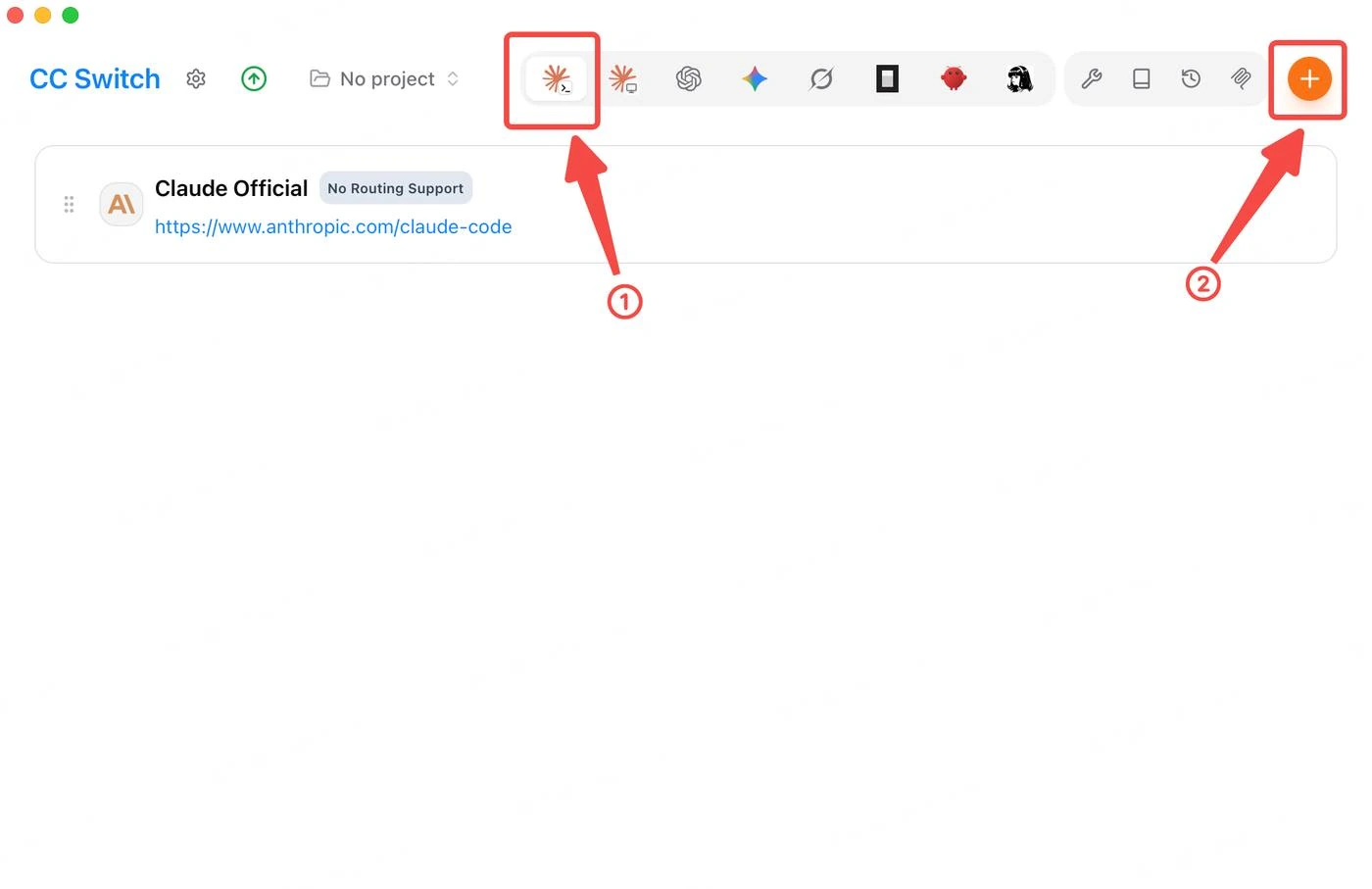
- Open CC Switch, switch to the Claude Code page, then click the + in the top right.
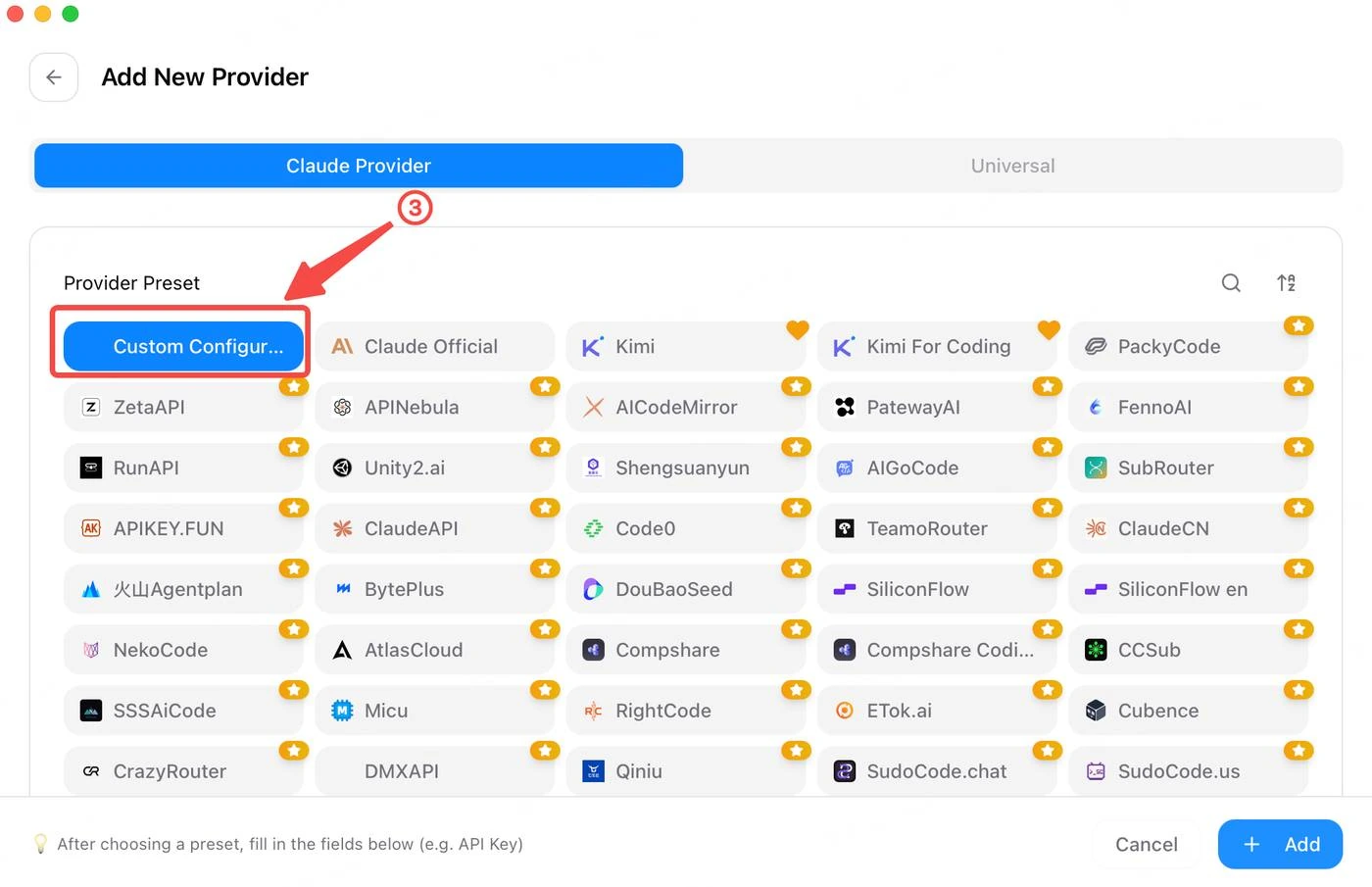
- Choose Custom Config.
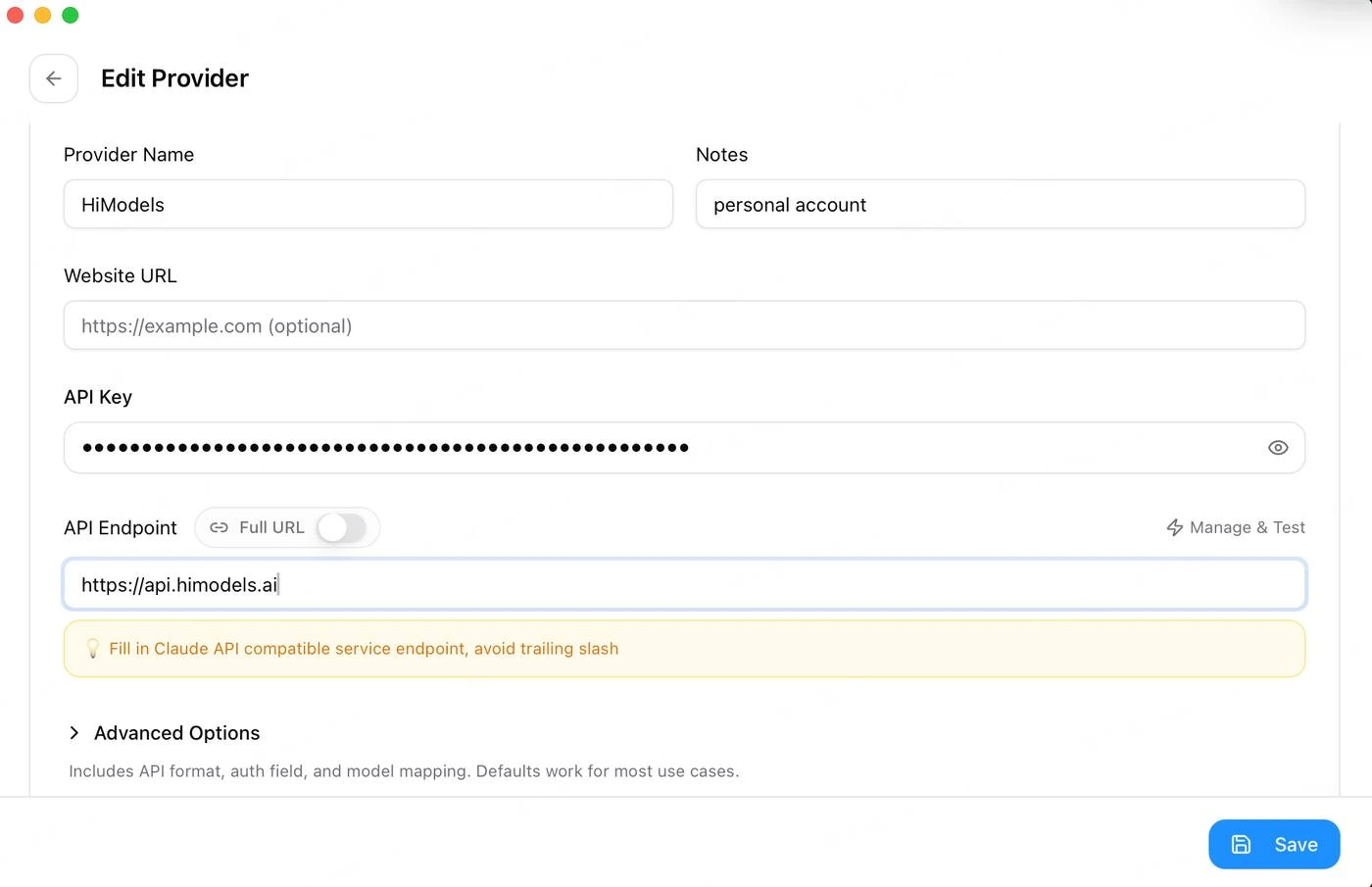
- Paste the API Key you just created, set the API endpoint to
https://api.himodels.ai, then click Add.
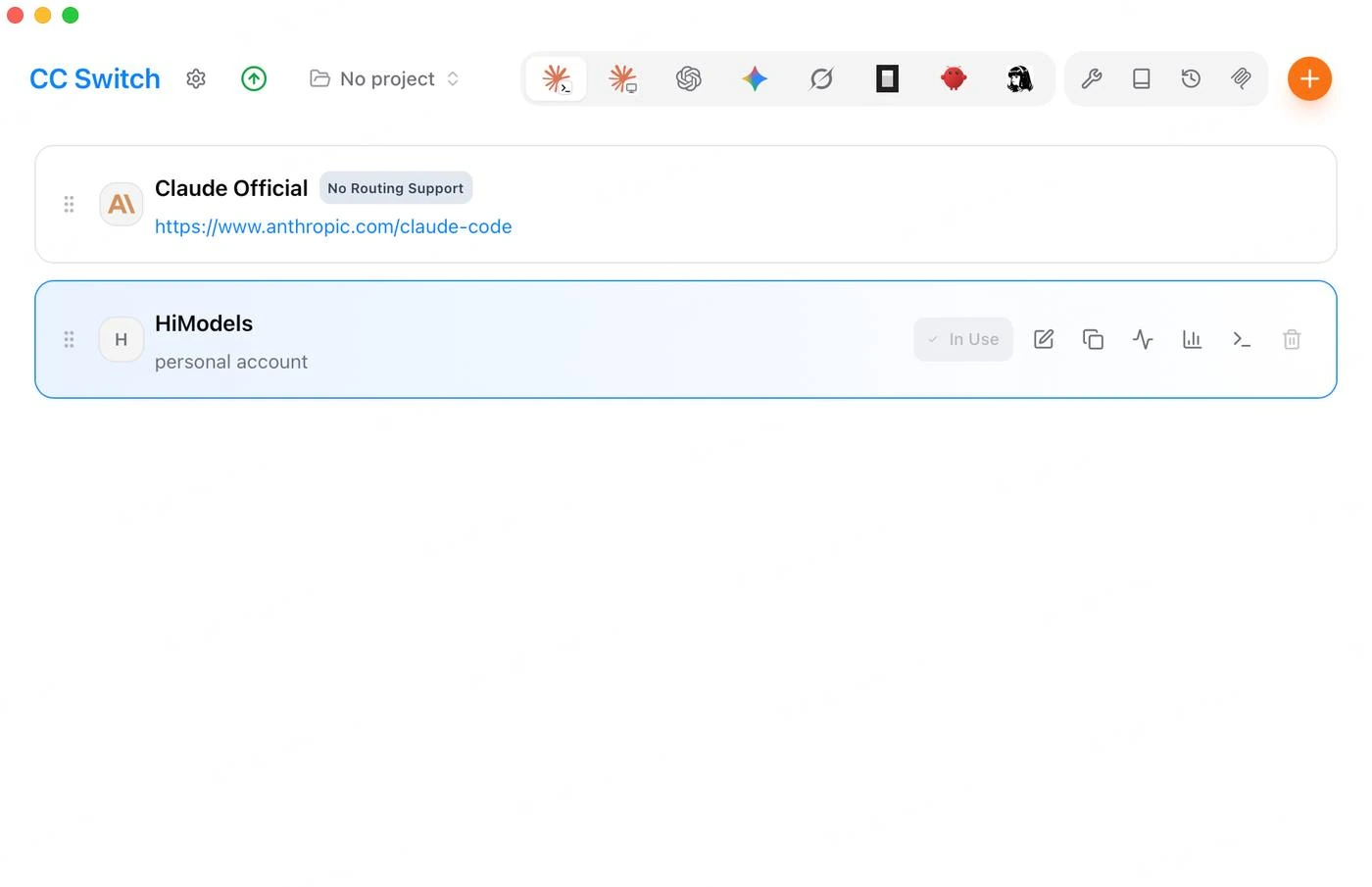
- When the provider is added, go back to the CC Switch home screen and click In Use on the HiModels entry.
Optional: configure from the command line
Temporary configuration
A temporary configuration only applies to the current terminal window, which makes it a good way to try things out.
$env:ANTHROPIC_BASE_URL = "https://api.himodels.ai"
$env:ANTHROPIC_AUTH_TOKEN = "sk-your-api-key"
claude
Permanent configuration
[System.Environment]::SetEnvironmentVariable("ANTHROPIC_BASE_URL", "https://api.himodels.ai", [System.EnvironmentVariableTarget]::User)
[System.Environment]::SetEnvironmentVariable("ANTHROPIC_AUTH_TOKEN", "sk-your-api-key", [System.EnvironmentVariableTarget]::User)
After the permanent configuration is written, close and reopen your terminal, then run claude.
Verify
Change into a code project directory and run:
claude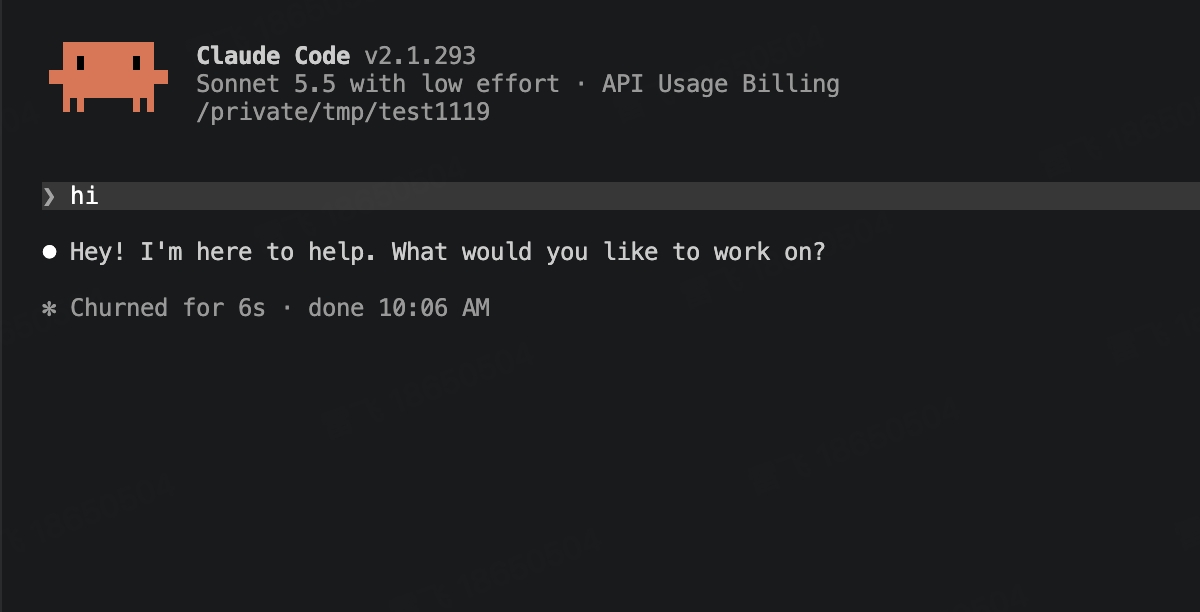
If Claude Code can read your project and reply, the connection works. For 401, 403 or 429 errors, see the FAQ.
If the model is unavailable, first check that it is supported, then check the API Key and Base URL.