DeepSeek Harness Desktop
Add a HiModels Provider in DeepSeek Harness Desktop and configure the OpenAI or Anthropic protocol, models, and workspace.
Download and install
Open https://www.deepseek.com/en/harness/ and choose the installer for your operating system. The screenshot below uses macOS as an example. After downloading, install and open the app.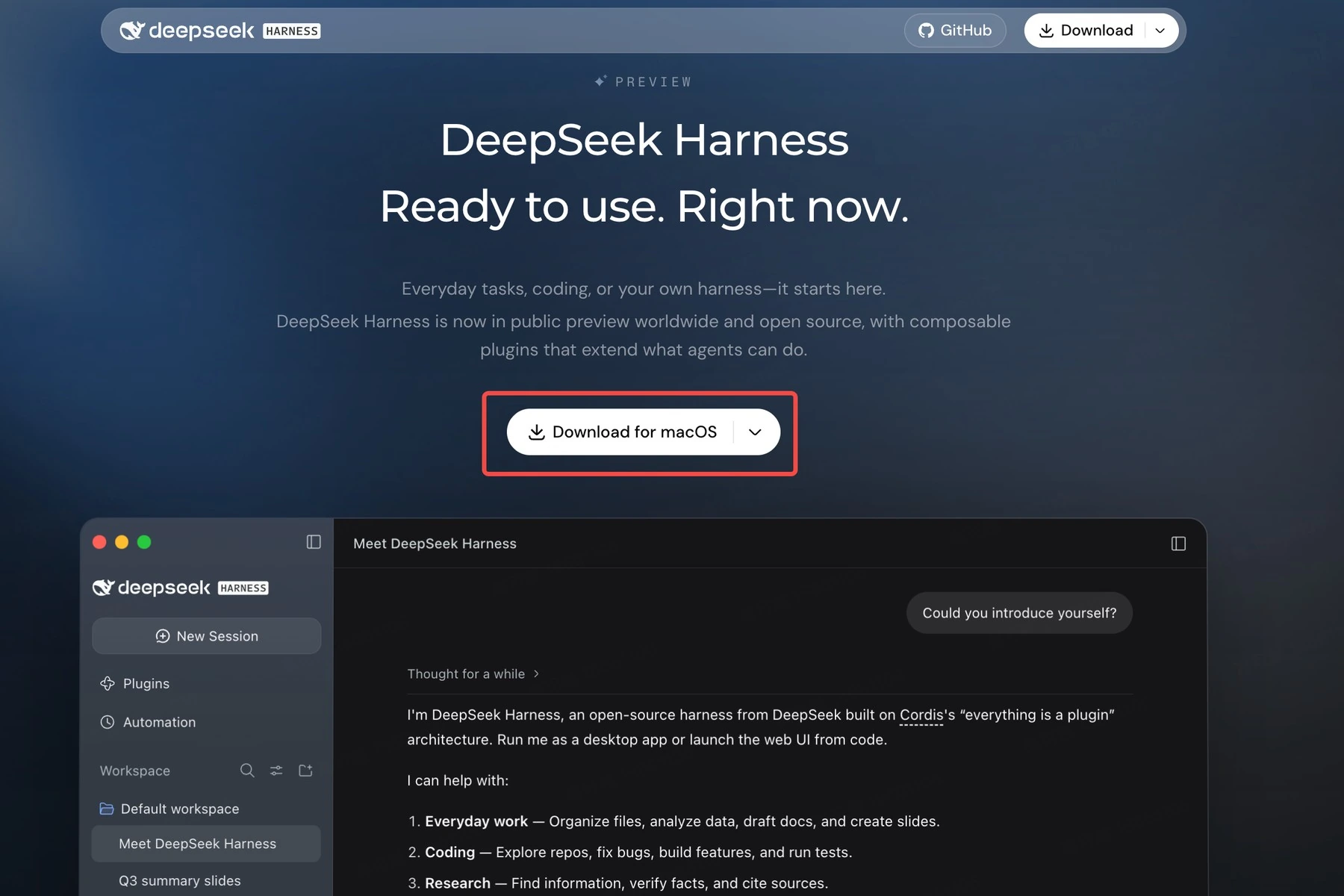
Open model settings
Click your profile in the lower-left corner, then choose Settings.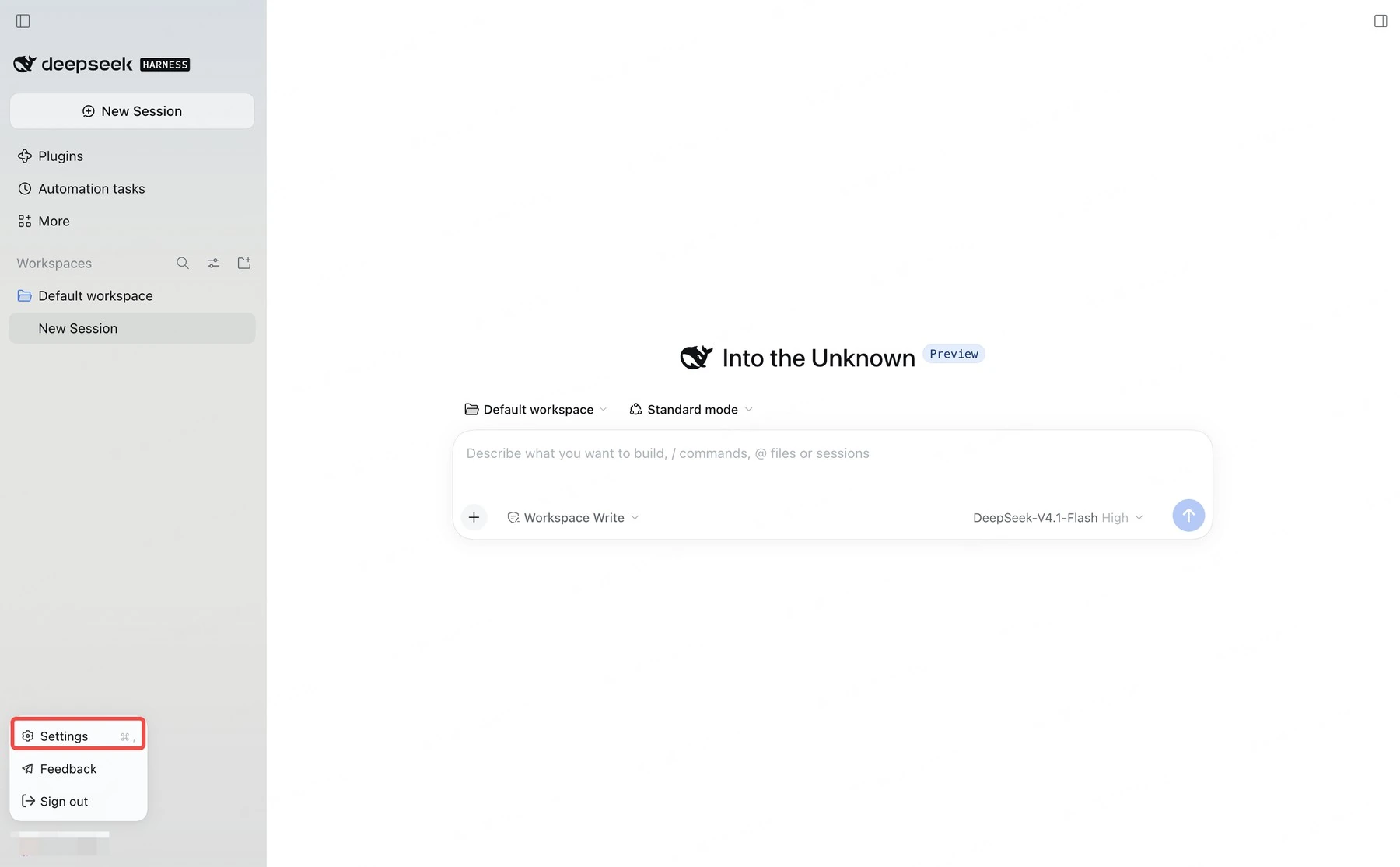
Select Models on the left, then click Add model provider.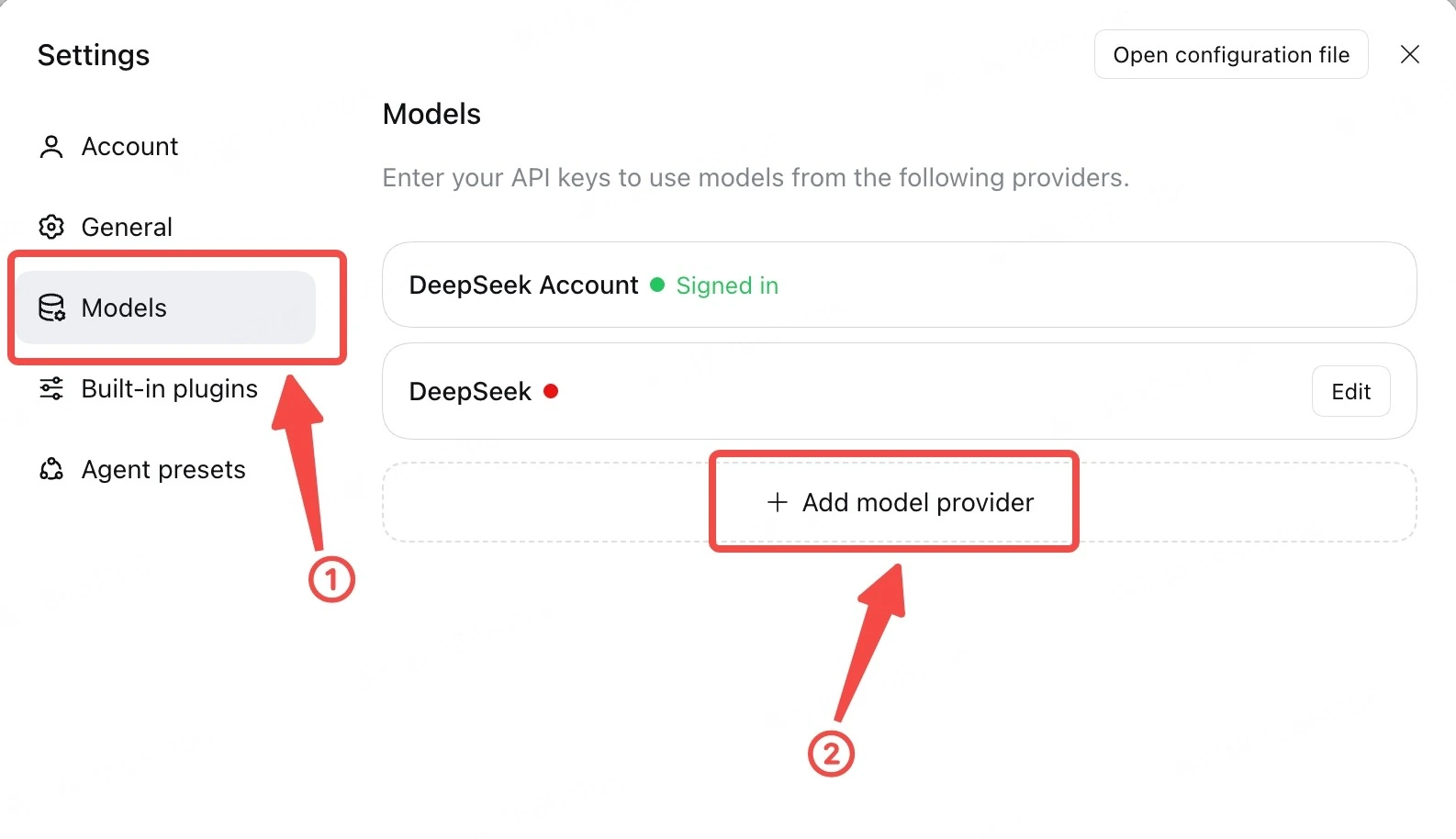
Add the HiModels provider
Select Custom model API. First go to https://himodels.ai/console/models/api-keys, select a model that supports third-party calls to create an API Key, then fill in the following information:
| Field | Value |
|---|---|
| Provider ID | himodels |
| Display name | HiModels |
| Base URL | https://api.himodels.ai/v1 |
| API protocol | OpenAl Responses |
| API key | The API Key you created in HiModels |
In the Models section, click Add model to add models as needed:
| Model ID | Display name |
|---|---|
gpt-6.2-sol | GPT-6.2 Sol |
gpt-6.2-astra | GPT-6.2 Astra |
Enter the model ID accurately, and ensure the model is available to the group associated with the API Key. The display name is used in the interface. You can also click Fetch available models to retrieve available models.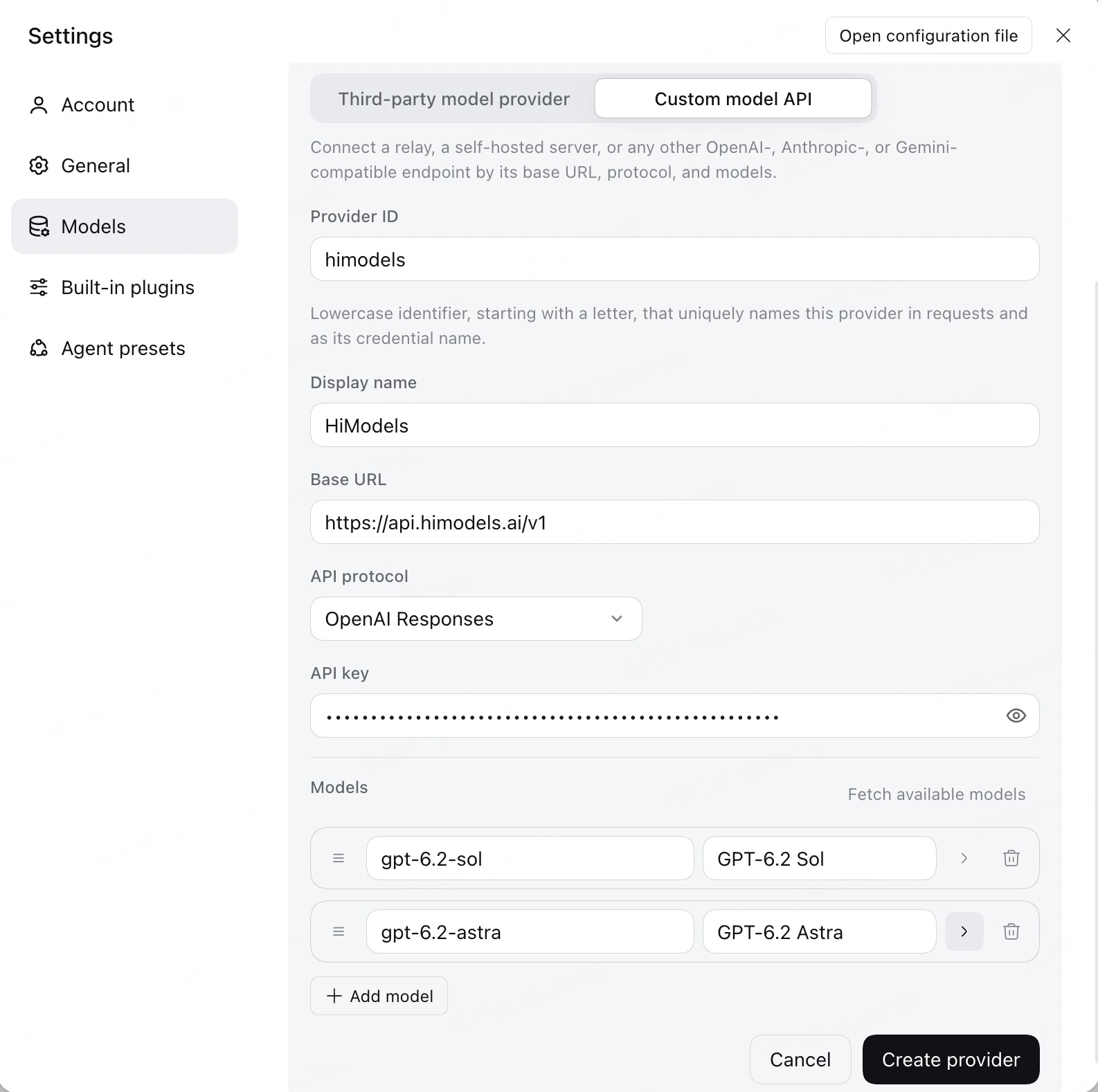
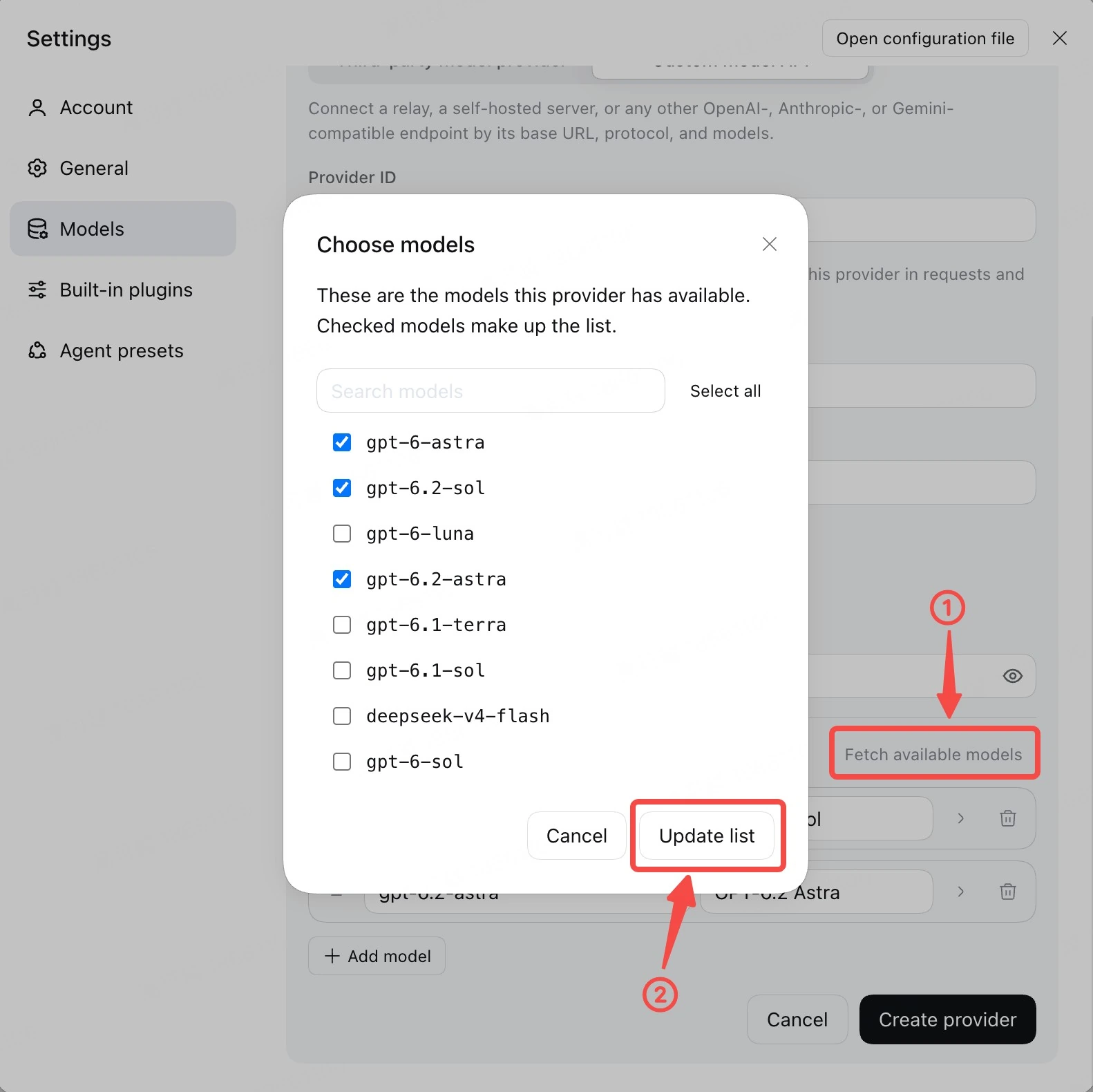
Add the reasoning effort according to the model settings.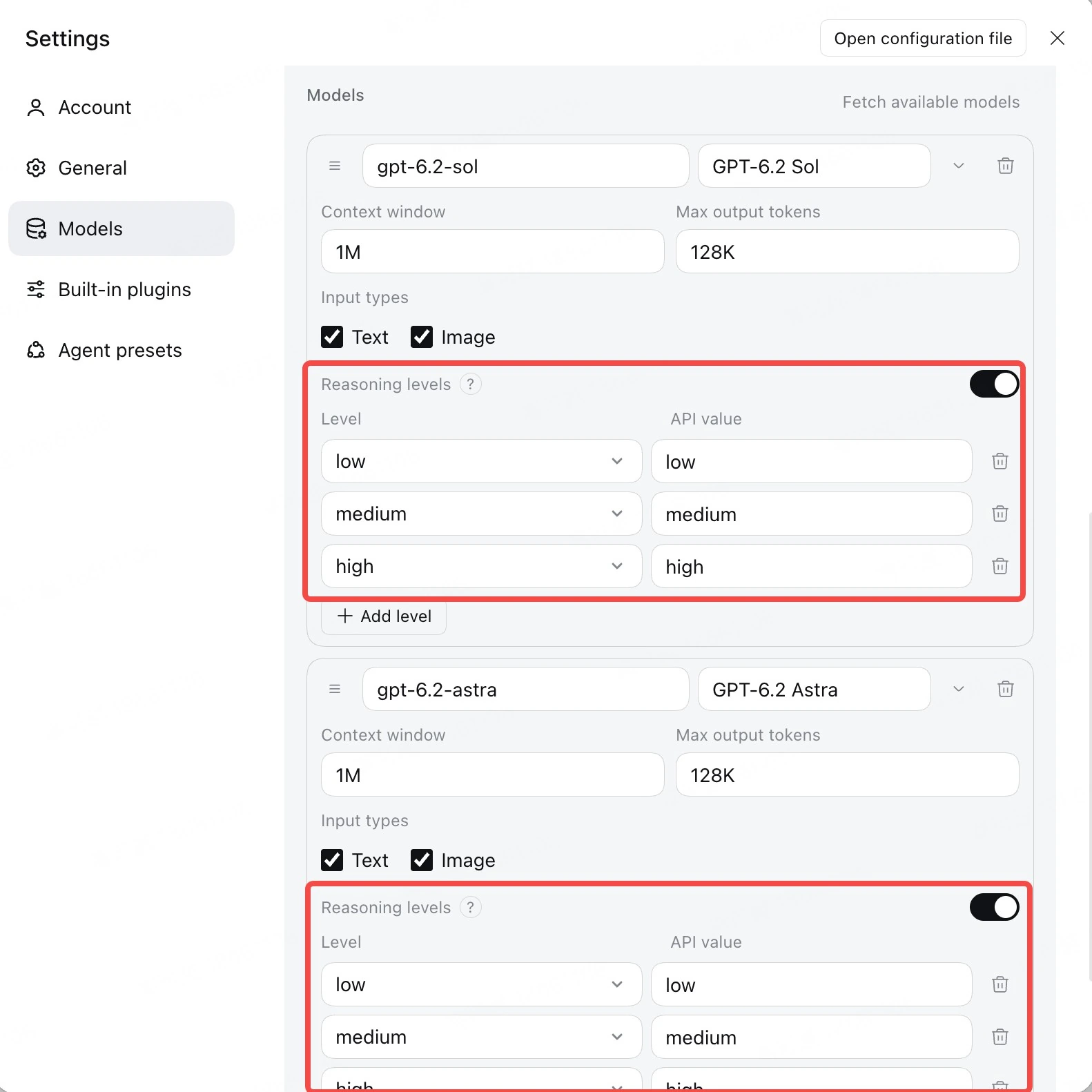
Review the configuration, then click Create provider to save it.
Select a model and verify
Close settings, click New Session to create a session, and select the workspace to use. Click the model selector at the bottom right of the input box and select the newly added model under HiModels, such as GPT-6.2 Astra.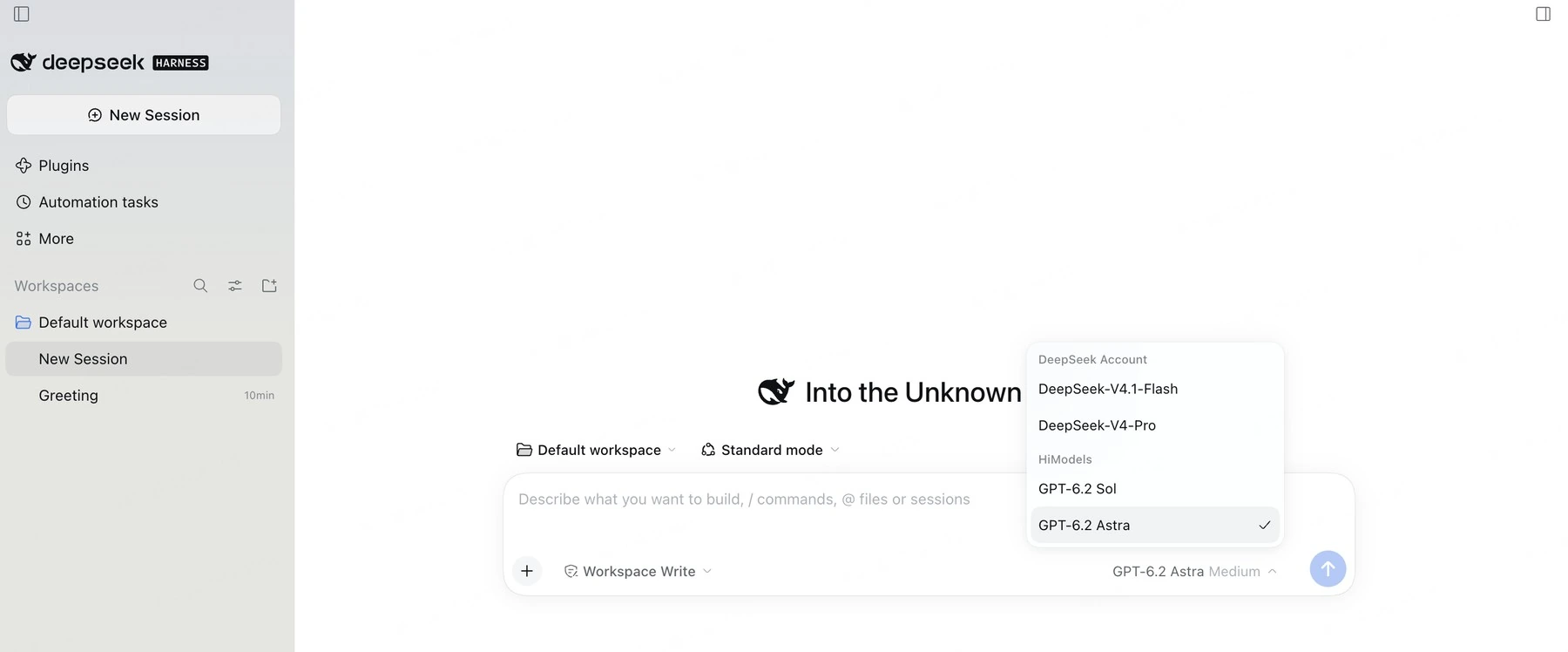
Send a simple message, such as “hi”. After receiving a normal reply, check the usage record for the corresponding request in HiModels Model Management to confirm the connection is successful.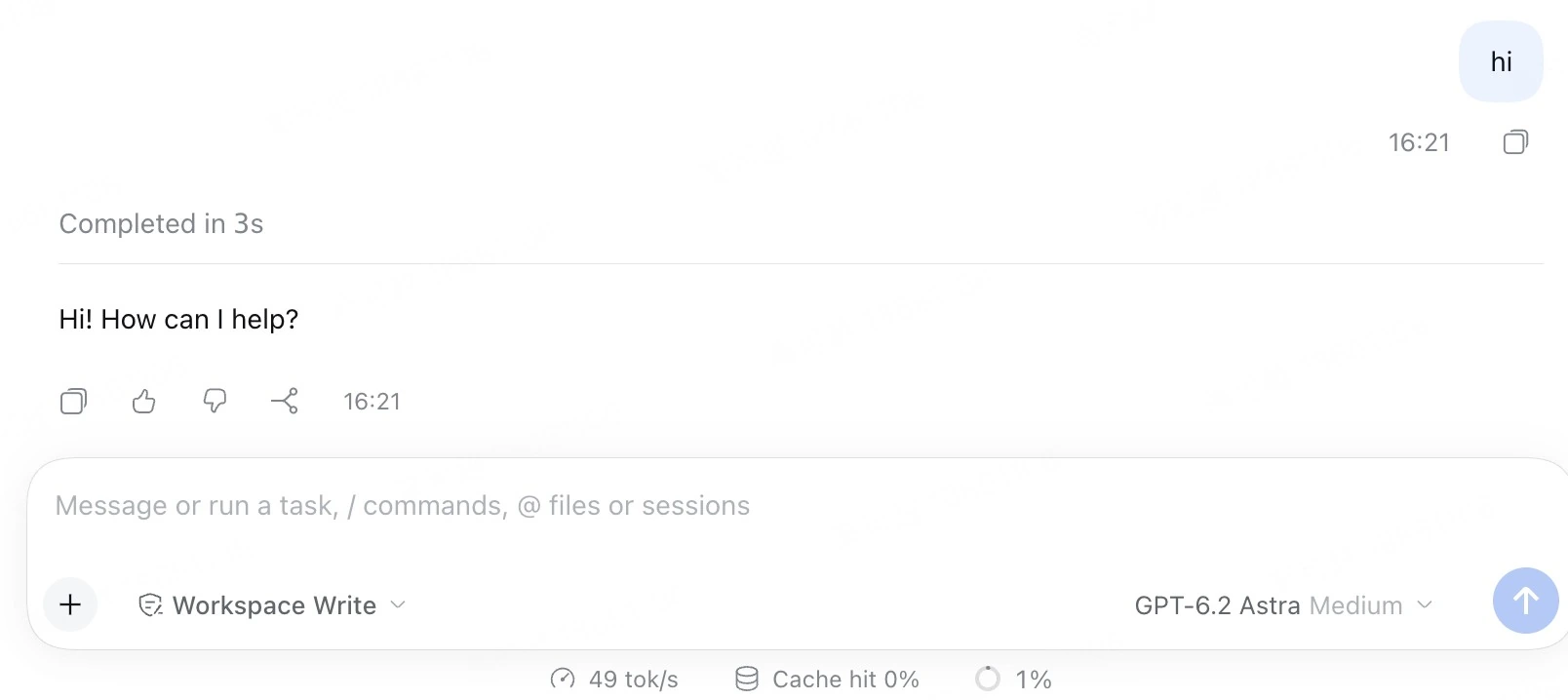
For more configuration instructions, see https://deepseek-harness.github.io/deepseek-harness/en/guide/quickstart.