Codex CLI
To connect Codex CLI to a third-party API you need an OpenAI-compatible base URL, an API Key and a model. You can manage providers through CC Switch or edit the config file directly.
Install
npm install -g @openai/codex@latest
codex --version
Recommended: connect with CC Switch
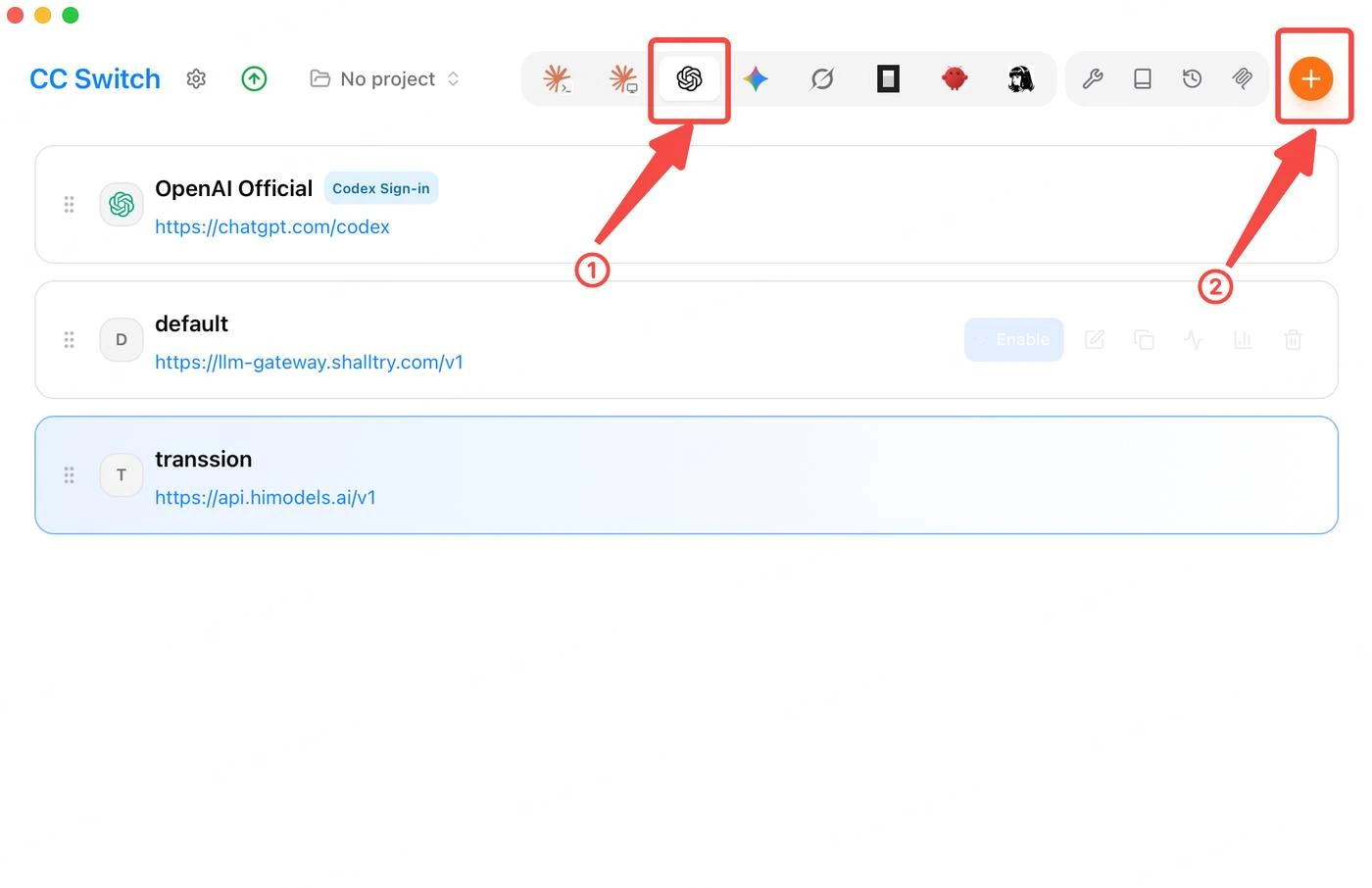
- Open CC Switch, switch to the Codex page, then click the + in the top right.
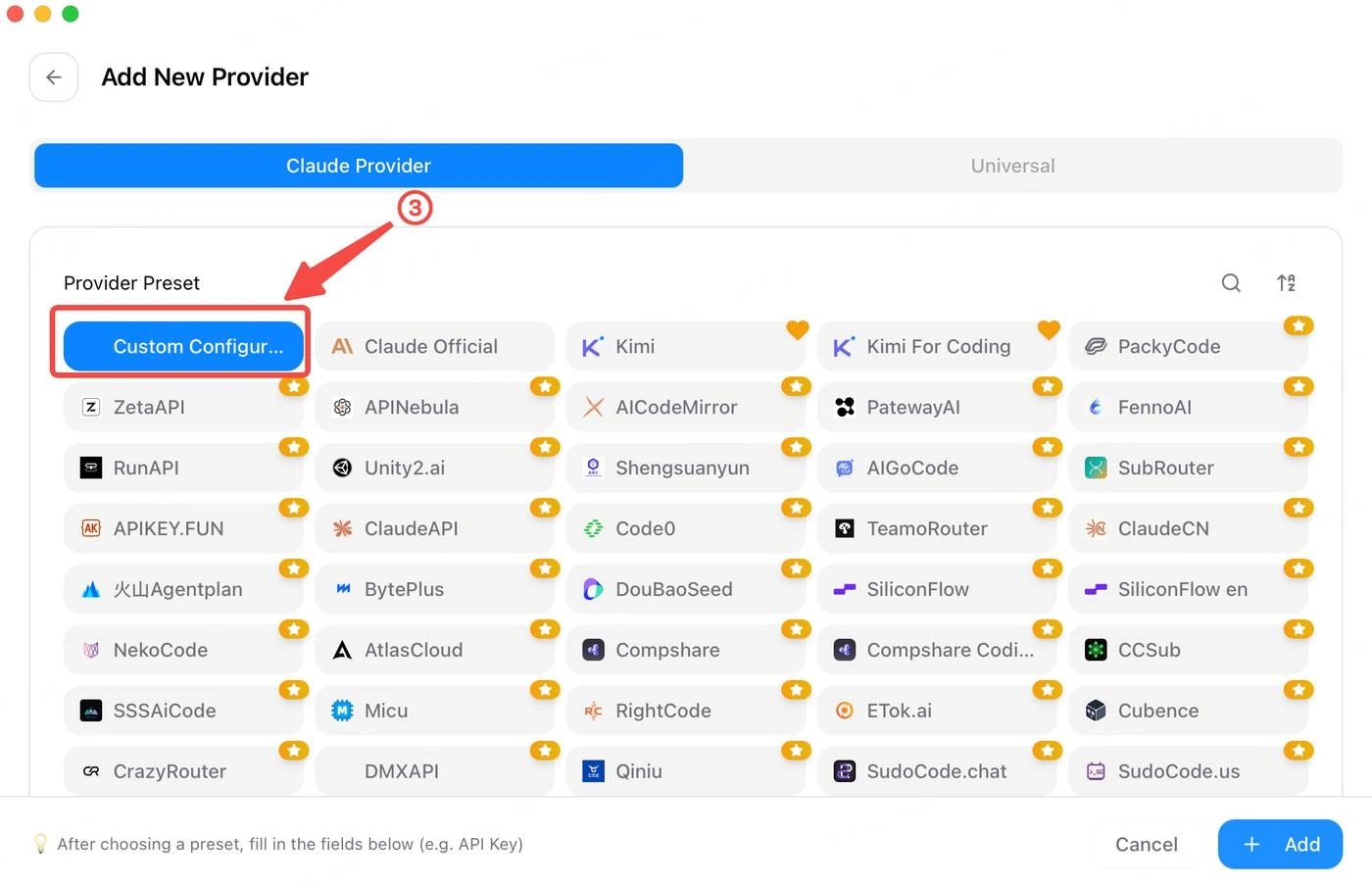
- Choose Custom Config.
- Paste the API Key you just created and set the API request URL to
https://api.himodels.ai/v1.
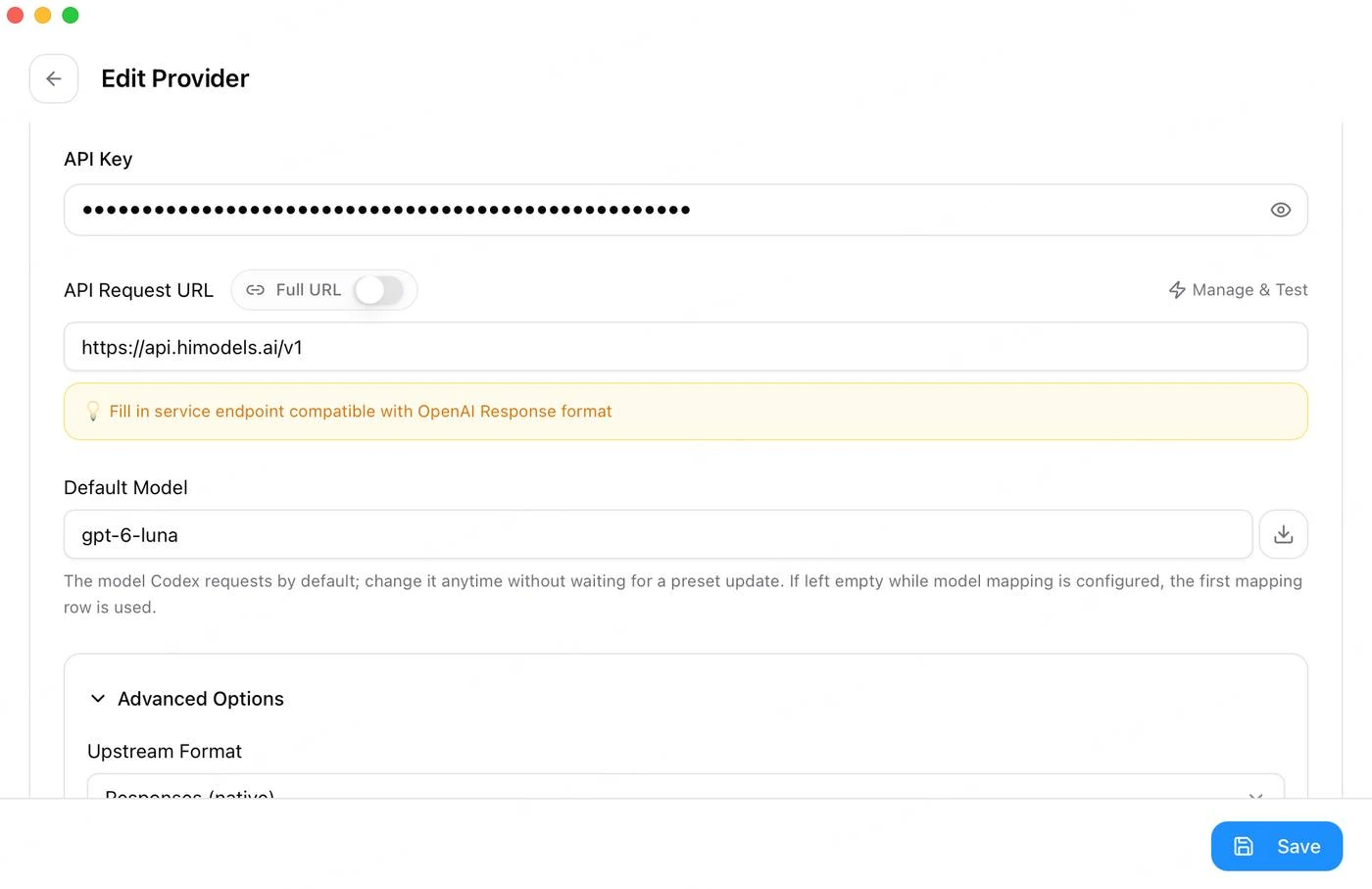
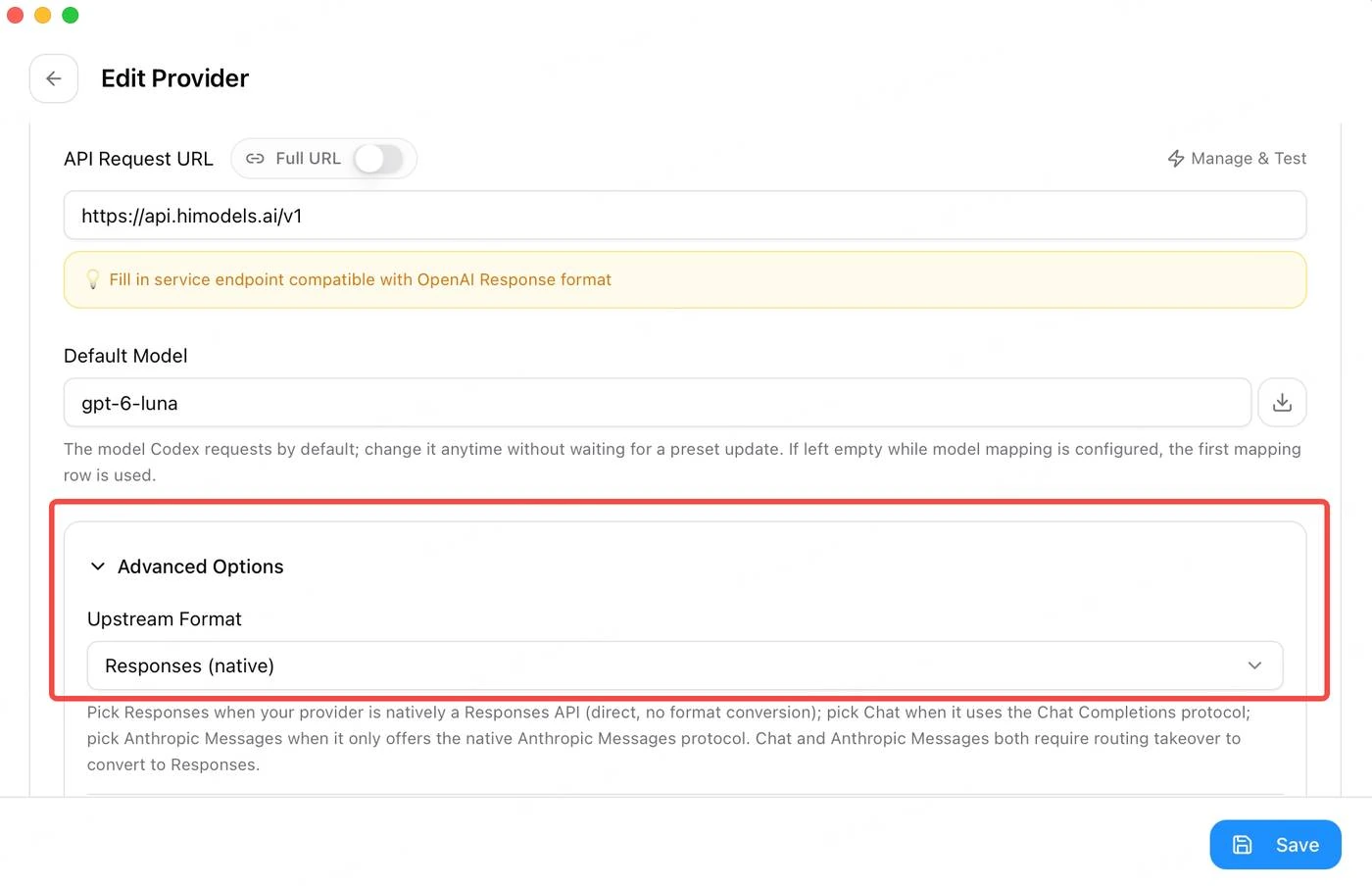
- Click the fetch button next to the default model and select the model you want to use. Keep the upstream format as Responses (native), then click Add.
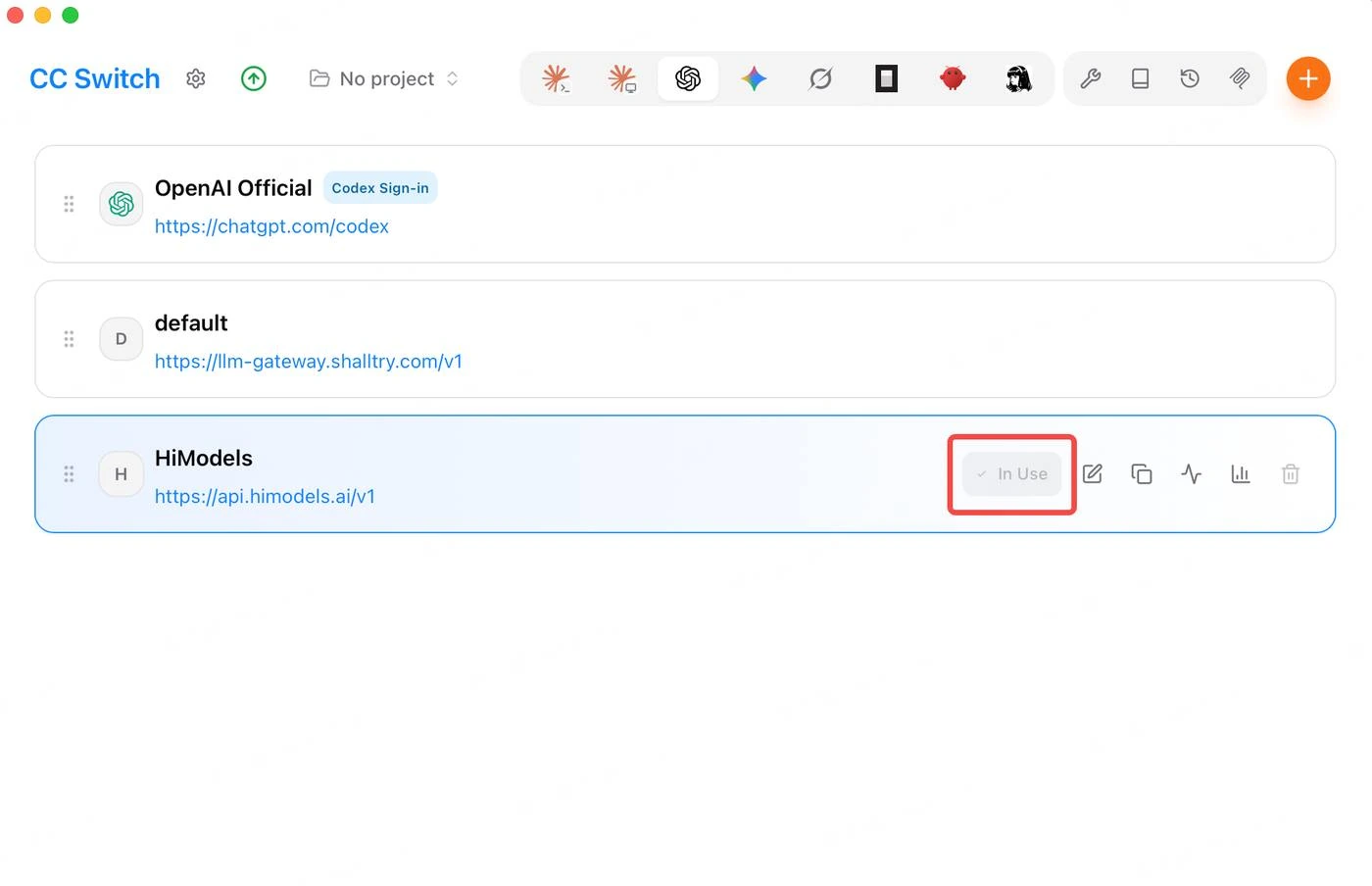
- When the provider is added, go back to the CC Switch home screen and click In Use on the HiModels entry.
Verify that the connection works
codex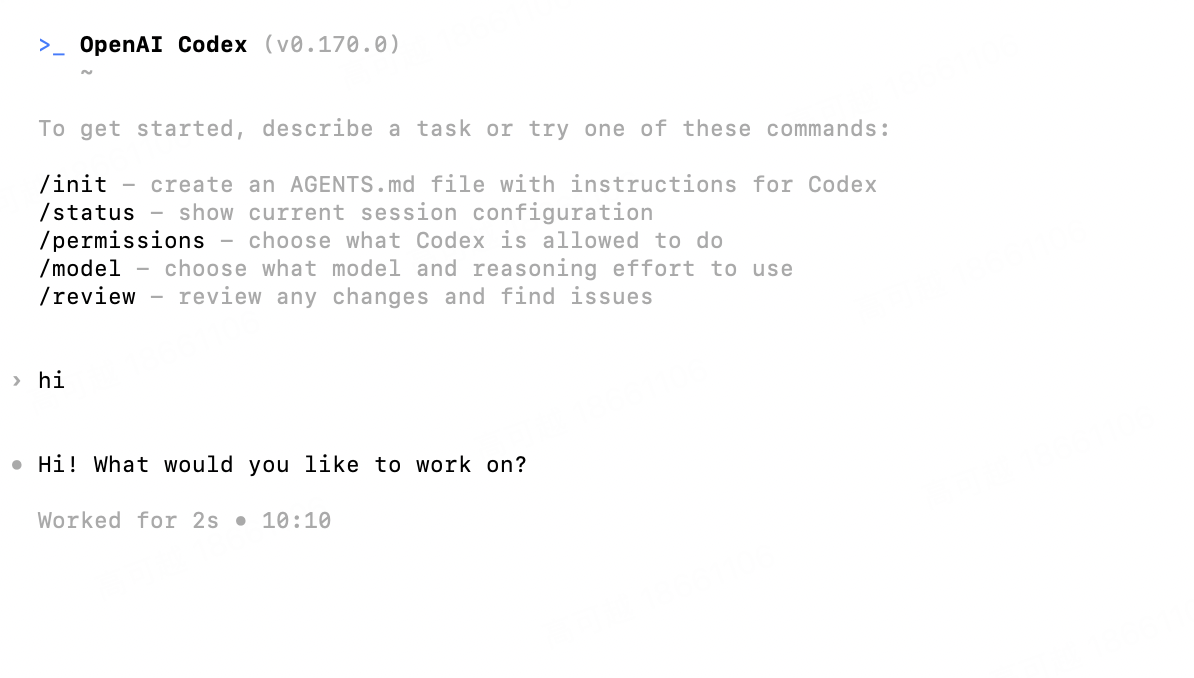
Once you get a normal reply, open HiModels → Model Management and check the request time, model and group to confirm the call went through HiModels. For 401, 403 or 429 errors, see the FAQ.